Quizlet to Anki: 4 Free Ways to Convert Your Sets (2026)
The four methods that work today, with the exact settings Anki's importer expects.
Last checked September 2026
The fastest free way: open your Quizlet set on the website, choose Export from the more menu, copy the text, and paste it into a Quizlet to Anki converter to get an .apkg file Anki opens directly. You can also import the text yourself with File > Import, or use the Anki add-on 1362209126 if you need audio and images. Text export only carries the words.
Jump to:
Method 1: Quizlet's Built-In Export
Quizlet's help center says the creator of a set can export its terms and definitions from the website. You can't export a set you copied from another user, and export isn't in the mobile apps. If you're studying someone else's set, use Method 2 or Method 4.
-
1
Open your set and find Export
Open the Quizlet set you own. Click the three-dot overflow menu and look for "Export." If you don't see it, the set may need to be yours (not just studied/favorited), or your account may not have it enabled.
-
2
Set the delimiters Anki expects
Quizlet's export screen lets you choose a term/definition separator and a row separator. Set "between term and definition" to Tab and "between rows" to New line. This matches Anki's default text import format exactly.
-
3
Copy the text and save as .txt
Select all the exported text and copy it. Paste it into a plain text editor (Notepad, TextEdit in plain-text mode, or a code editor) and save the file with a .txt extension.
-
4
Import into Anki
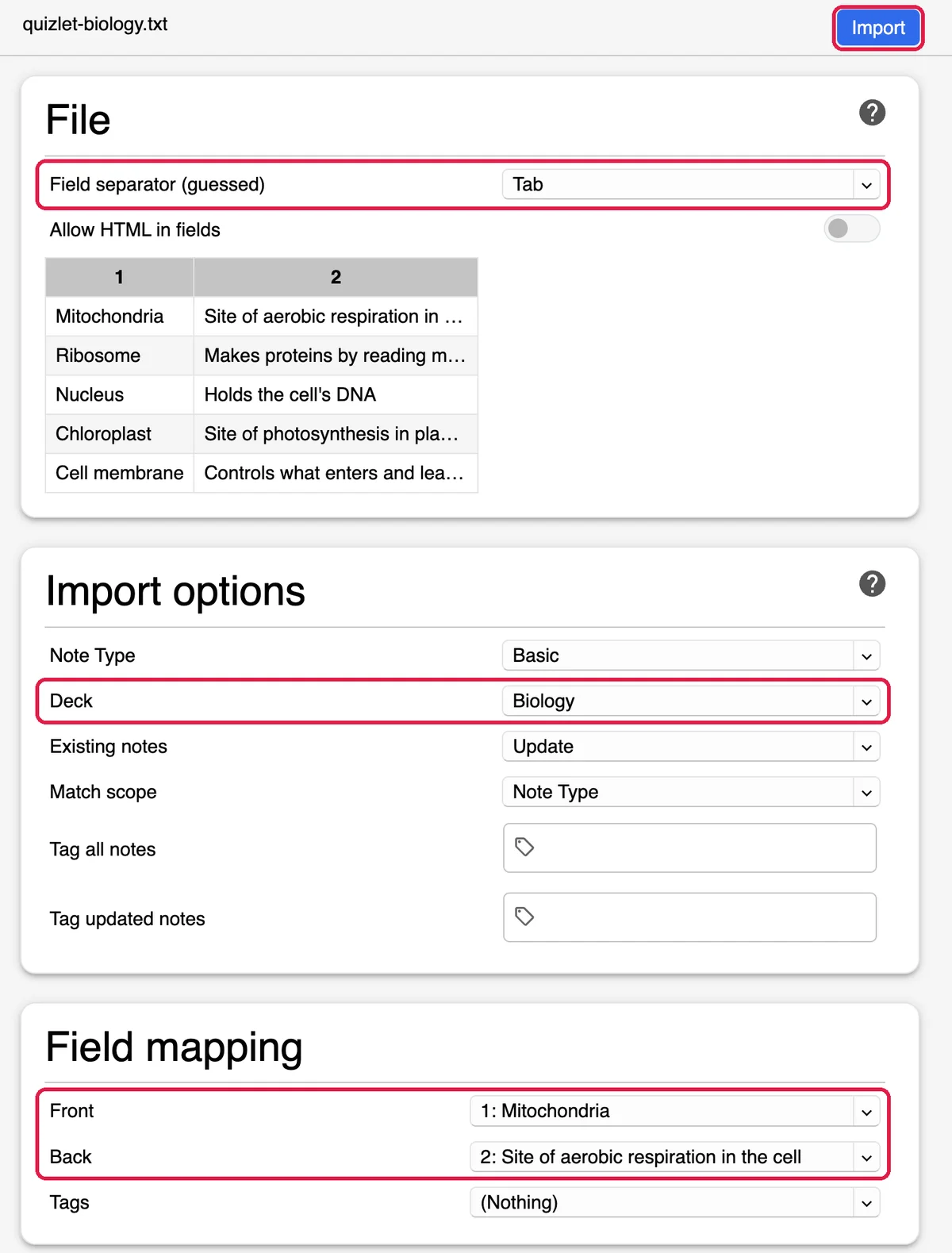
In Anki desktop, go to File → Import and select your .txt file. On the import screen, confirm Field separator is set to Tab, map Field 1 to Front and Field 2 to Back, choose the deck, and click Import.
If you don't see an export option
Skip to Method 2 below. Copy-paste into a spreadsheet works regardless of whether Quizlet's export UI is available on your account, and it gives you more control over formatting anyway.
Method 2: Copy-Paste to CSV
This is the most reliable method because it doesn't depend on Quizlet's export feature staying available. It takes a few extra minutes but works for any set you can view.
-
1
Open a spreadsheet
Open Google Sheets or Excel. Put your term in Column A and definition in Column B for each row, matching the order in your Quizlet set.
-
2
Use Quizlet's flashcard view to copy faster
Rather than retyping, open the set's flashcard or list view and copy each term/definition pair directly. For large sets, the built-in export in Method 1 is faster if it's available to you.
-
3
Export as CSV with UTF-8 encoding
File → Download → Comma-separated values (.csv) in Google Sheets, or File → Save As → CSV UTF-8 in Excel. UTF-8 matters if your cards include accents, non-Latin scripts, or special characters.
-
4
Import into Anki and map fields
File → Import, select your .csv file. Anki auto-detects the comma separator. Map Field 1 to Front, Field 2 to Back, choose Basic or Cloze as your note type, and select the destination deck.
Basic vs. Cloze note type
Use Basic for straightforward term/definition pairs, which covers most Quizlet sets. Use Cloze if your definitions are full sentences where hiding a specific word or phrase (rather than the whole answer) tests recall better, common for language vocabulary in context or formula-heavy material.
Method 3: Converter Tools
Several third-party tools and browser extensions automate the copy-paste step in Method 2, pulling a Quizlet set's terms and definitions directly into a CSV or .apkg file. They save time on large sets but add a dependency on a tool outside Quizlet and Anki, so verify a converter is actively maintained before trusting it with a big deck; Quizlet's page structure changes periodically and can break scrapers. Our own free Quizlet to Anki Converter takes the pasted text from Method 1 or a CSV export and hands back a ready-to-import .apkg, no signup required.
If you have the original source material behind your Quizlet set, your class notes, a textbook chapter, or a PDF, regenerating cards from that source with an AI tool often produces better cards than converting Quizlet's version. Quizlet sets are frequently crowd-sourced and contain errors; regenerating from source also gives you the option to output straight to a ready-made .apkg. See importing any flashcards into Anki for that workflow.
Method 4: The Quizlet Importer Add-on
The Quizlet to Anki 2.1 Importer with audio support pulls a set straight from its Quizlet link, including audio and images, and works for sets you didn't create. It was last updated in June 2026.
- In Anki desktop, go to Tools > Add-ons > Get Add-ons and paste the code
1362209126. Restart Anki. - Open the set in your browser and copy its full URL, the long form with the set number in it, not a quizlet.com/_ short link.
- Go to Tools > Import from Quizlet, paste the link and click Import Deck. Untick audio if you don't need it, since it slows the import.
Quizlet blocks automated requests, so the add-on routes them through its author's server and sometimes fails with an "Expecting value" error. The author's fix is to paste the page's HTML into the add-on instead of the link. If it keeps failing, fall back to Method 1 or 2.
Troubleshooting
Images and audio didn't come through
Text export (Methods 1 and 2) only transfers words. Quizlet's export format doesn't include image or audio files, even if your set has them. You'll need to re-add media manually in Anki's card editor, or recreate those specific cards.
Strange characters instead of accents (mojibake)
This means the file wasn't saved as UTF-8. Re-save your .txt or .csv file with UTF-8 encoding explicitly selected, then re-import.
HTML tags showing up inside cards
Some Quizlet sets contain embedded formatting that carries over as raw HTML tags in the exported text. Check "Allow HTML in fields" on Anki's import screen if you want the formatting to render, or strip the tags in your spreadsheet with a find-and-replace before importing.
Duplicate cards after re-importing
Anki checks for duplicates within the same note type and deck by matching the first field. If you import the same set twice, enable "Update existing notes" on the import screen instead of creating a second copy.
Everything landed in one field
The field separator on Anki's import screen doesn't match your file. Tab-separated text needs Tab selected; CSV needs Comma. Anki usually auto-detects this, but double check the preview table before clicking Import.
Converting From Other Apps
Quizlet isn't the only app without a clean Anki export. The same CSV approach works for most flashcard tools:
- Export StudySmarter flashcards to Anki
- Export Gizmo flashcards to Anki
- Export RemNote to Anki
- Export Brainscape to Anki
- Export Notion flashcards to Anki
Already have a CSV or TSV from any of these, or from a spreadsheet? The CSV to APKG converter turns it into a ready-to-import deck.
Skip the Conversion Entirely
Upload your class notes or a PDF to StudyCards AI and export a ready-made .apkg, no copying between Quizlet and Anki, no field mapping, no lost images.
Start Free: Generate Your Deck