Anki Download 2026: Free Official Links for Windows, Mac and Linux
Download Anki from apps.ankiweb.net, the only official site. The desktop app is free for Windows, Mac and Linux, AnkiDroid is free on Android, and AnkiMobile for iPhone and iPad is a $24.99 one-time purchase.
Which Anki download do you need?
| Device | App | Where to get it | Price | Needs |
|---|---|---|---|---|
| Windows | Anki desktop | apps.ankiweb.net | Free | Windows 10 or later (x64 or ARM) |
| Mac | Anki desktop | apps.ankiweb.net | Free | macOS 13 or later (Apple Silicon or Intel) |
| Linux | Anki desktop | apps.ankiweb.net | Free | A 2022 or newer distro (x64), 2024 or newer (ARM) |
| Android | AnkiDroid | Google Play | Free | Any recent Android phone |
| iPhone, iPad | AnkiMobile | App Store | $24.99 once | Funds Anki development |
| Any browser | AnkiWeb | ankiweb.net | Free | Sync and review online |
Requirements from apps.ankiweb.net and the App Store listing, checked September 2026. Avoid third-party mirrors like Softonic or MacUpdate.
Step 1: Download Anki Desktop
Start with Anki desktop - this is where you'll create cards, manage decks, and configure settings. The mobile apps are for reviewing on the go.
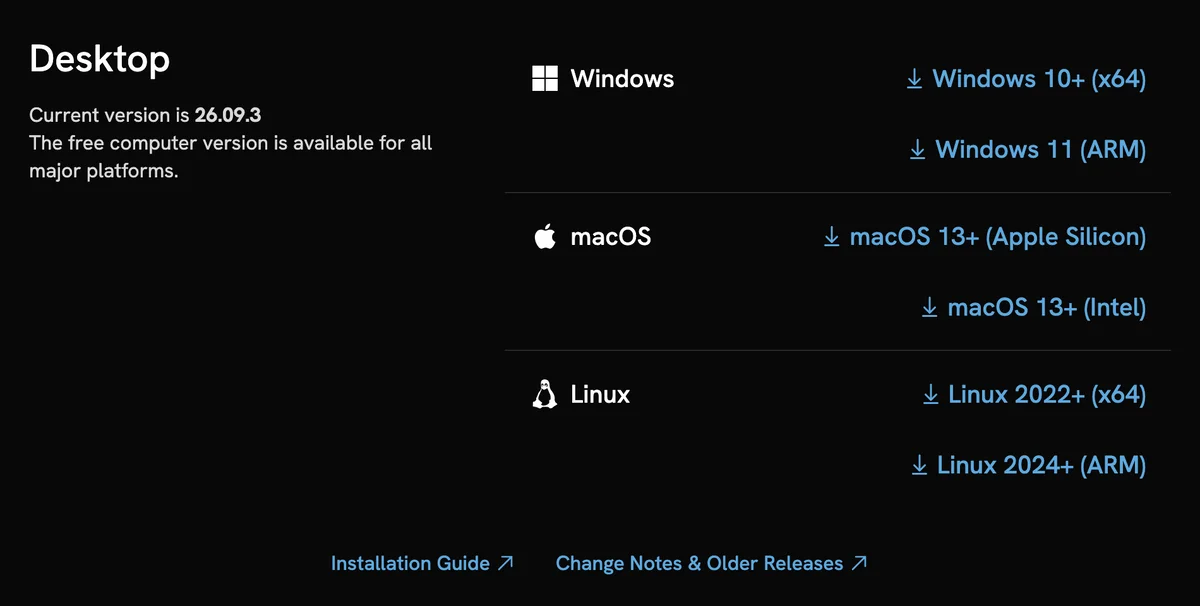
Anki Download for Windows
- 1. Go to apps.ankiweb.net
- 2. Click "Windows 10+ (x64)". Pick "Windows 11 (ARM)" only on an ARM laptop.
- 3. Run the installer (.exe file) - accept defaults
- 4. Launch Anki from the Start menu
Anki Download for Mac
- 1. Go to apps.ankiweb.net
- 2. Click "macOS 13+ (Apple Silicon)" for any M-series Mac, or "macOS 13+ (Intel)" for older Macs
- 3. Open the .dmg file and drag Anki to Applications
- 4. On first launch, right-click → Open to bypass Gatekeeper
Anki Download for Linux
- 1. Download the Linux package (a .tar.zst file) from apps.ankiweb.net
- 2. Install zstd if you need it, for example
sudo apt install zstd - 3. Extract the file,
cd anki-linux, then runsudo ./install.sh - 4. Start it with
anki. Full steps are in the Anki manual
Step 2: Create an AnkiWeb Account
AnkiWeb is Anki's free sync service. You need it to sync between desktop and mobile, and to access your collection from a browser.
- Go to ankiweb.net and click Sign Up
- Enter your email and create a password
- In Anki desktop: Tools → Preferences → Syncing → log in with your AnkiWeb account
- Click the sync button (cloud icon in the toolbar) to perform your first sync
Step 3: Install on Mobile
iPhone / iPad (AnkiMobile)
- 1. Open the App Store and search "AnkiMobile Flashcards"
- 2. Purchase for $24.99 (one-time, permanent)
- 3. Open the app and sign in with your AnkiWeb account
- 4. Tap the sync button - your decks appear automatically
The purchase price goes to Anki development. No subscription, no hidden fees.
Android (AnkiDroid)
- 1. Open Google Play Store and search "AnkiDroid"
- 2. Install - it's completely free
- 3. Open the app → hamburger menu → Settings → AnkiDroid → AnkiWeb Account
- 4. Log in and sync
AnkiDroid is a separate open-source project from Anki desktop but fully compatible.
Step 4: Import Your First Deck
You have two options: download a pre-made deck or import cards from an external source.
Option A: Download from AnkiWeb
In Anki desktop: Get Shared button at the bottom of the main window. This opens ankiweb.net/shared/decks/ in your browser. Search for your subject, download a .apkg file, then open it - Anki imports it automatically.
Option B: Import from AI generator
Generate a deck from your own notes using an AI flashcard tool, export as .apkg or .csv, then File → Import in Anki desktop. This is the fastest way to get cards for your specific course material. See how to export to Anki for detailed steps.
First-Time Settings to Change
Before you start reviewing, make two changes:
- Enable FSRS - Deck options → scroll to bottom → toggle FSRS on, set retention to 0.90. This is Anki's modern scheduling algorithm and significantly better than the default.
- Set new cards per day to 10 - Deck options → New cards → Daily limit. The default 20 creates an unsustainable review backlog within weeks. Start at 10 and increase once you've established the habit.
See the full Anki settings guide for everything else.
Supercharging Your Setup: Essential Add-ons for Beginners
Once Anki is installed, you can extend it. Add-ons are community-made plugins that add features to the desktop version. To install them, navigate to Tools → Add-ons → Get Add-ons and enter the specific code found on the AnkiWeb add-ons page.
- Review Heatmap: Adds a calendar to your main screen that shows your daily streak, which helps you keep it going.
- Image Occlusion Enhanced: A must-have for anatomy, geography, or chemistry students; it allows you to hide specific labels on an image and guess them.
- Frozen Fields: Ideal for those creating their own cards, as it allows you to keep certain text constant across multiple cards in a session.
Add-ons make Anki nicer to use, but the quality of your cards decides how well you do. To avoid hours of typing, you can use StudyCards AI to turn your lecture notes into Anki-ready files, then import them using the steps above.
Common Installation Hurdles and How to Fix Them
Installing Anki is simple, but new users often hit a few technical snags. Knowing how to fix them stops the early frustration that makes many beginners give up.
- macOS Gatekeeper: If you see a warning that "Anki cannot be opened because it is from an unidentified developer," do not panic. Right-click the app in your Applications folder and select "Open" instead of double-clicking. This tells macOS you trust the software.
- Sync Conflicts: When you first sync between desktop and mobile, Anki may ask if you want to "Upload to AnkiWeb" or "Download from AnkiWeb." If your desktop is the primary source of your cards, choose Upload to push your local collection to the cloud.
- Android Permission Issues: Some Android versions may block AnkiDroid from accessing local storage. Ensure you grant "Files and Media" permissions in your phone settings to allow the app to import .apkg files from your downloads folder.
Avoiding 'Anki Burnout': Post-Installation Strategy
The most common mistake new users make is "over-importing." It is tempting to download a 2,000-card deck and start reviewing immediately, but this often leads to a massive backlog of cards that becomes psychologically overwhelming within two weeks.
- Limit New Cards: Start with 10-20 new cards per day. This allows you to build a sustainable habit without being buried by an avalanche of reviews.
- Prioritize Reviews: Always finish your "Due" cards before starting "New" cards. The core value of Anki is the spaced repetition of old information, not the rapid acquisition of new data.
- Quality Over Quantity: If a card is consistently "Leeching" (you keep getting it wrong), don't just keep hitting 'Again.' Edit the card to make it simpler or more intuitive.
Anki is a marathon, not a sprint. The goal is long-term memory, and a small daily routine works far better than a weekend binge of flashcards.
Now Fill Your Anki with Cards from Your Notes
Anki is set up - now you need cards. StudyCards AI converts your notes, PDFs, or any text into a ready-to-import Anki deck. No manual card creation needed. To see how the two tools split the work, read Anki vs StudyCards AI.
Start Free - Create Your First Deck →